A simple guide to password generator.
Choose length and character types, then create a password that is truly yours.
Open Password generatorWhat this tool tells you
This local utility uses your browser's cryptographic randomness to generate a password. Long, unique passwords are harder to guess and reduce damage when another account is breached.
Try it in SiteTrace
- Choose a length from 8 to 128; 24 is the example setting.
- Keep at least one character type selected, then Generate password.
- Use a newly generated password for one account only and store it in a password manager.
This utility works locally in your browser. The screenshot shows one example result.
What your result looks like
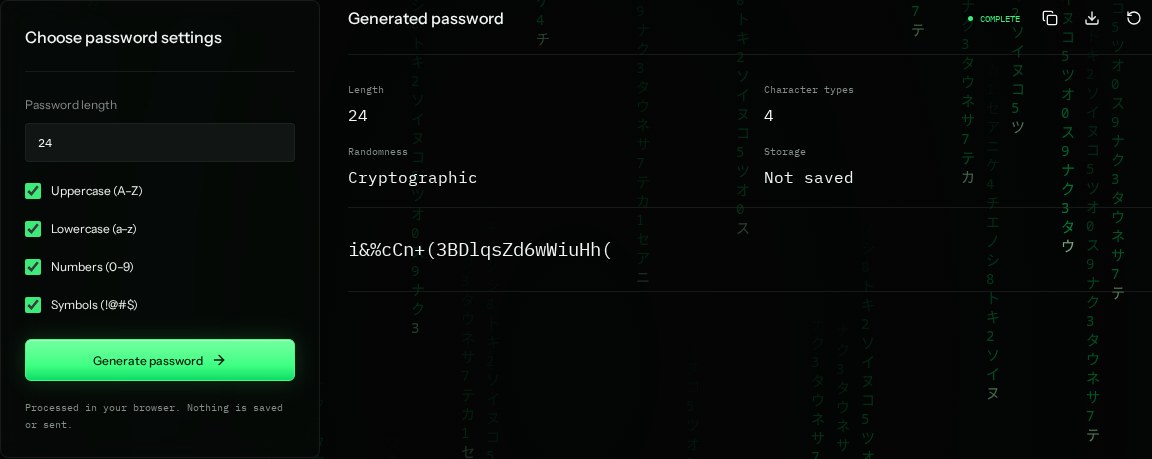
How to read the information
- Length
- The number of characters. A 24-character random password is much stronger than a short predictable phrase.
- Character types
- The selected groups: uppercase, lowercase, numbers, and symbols. Each selected group appears in the generated password.
- Cryptographic
- Random bytes come from the browser's secure random generator, not ordinary Math.random.
- Not saved
- SiteTrace does not save the result. Clipboard tools, screenshots, and your device can still expose it.
What the example means
The password in this guide's screenshot is public example data. Never use it for an account; generate a fresh one privately.
On your Mac or Windows PC
Mac instructions
Open the generator in Safari or Chrome. For a real account, your password manager can generate and save a unique password without putting it on the clipboard.
A check from your computer reflects your own connection. It may differ from a remote test or the mockup shown here.
Keep this in mind
Follow the account's allowed-character rules. Never reuse passwords or share screenshots of them. Enable multi-factor authentication when available.