A simple guide to is it down?.
Distinguish a working HTTP response from an actual outage.
Open Is it down?What this tool tells you
A website check follows the connection through DNS, encrypted transport, and HTTP. It helps narrow down whether the failure is local, network-related, or at the server.
Try it in SiteTrace
- Enter the full URL, including https://.
- Choose a region and Preview availability.
- Check the status, then inspect DNS, TLS, and redirects.
The current tool shows fixed mockup data—not a live check of the address you enter. The screenshot below is an example, not a diagnosis.
What your result looks like
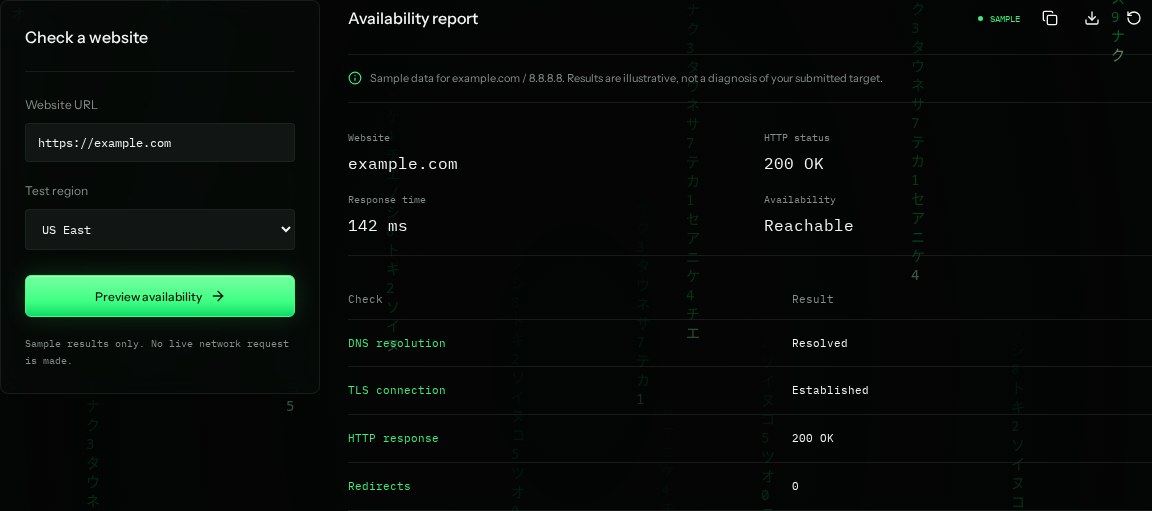
How to read the information
- 200 OK
- The server returned a successful response. The page can still contain an error message or broken application.
- Response time: 142 ms
- The sample response delay. It is not the time needed to load every image or script.
- DNS resolved
- The name was translated into a network address.
- TLS established
- An encrypted connection was established. HTTP comes after this step.
What the example means
The sample responds successfully. If your browser still fails, try a second network and check the exact URL.
On your Mac or Windows PC
Mac instructions
Run in Terminal to request headers. -I uses HEAD; some sites handle it differently from a normal browser GET request.
curl -I https://example.comA check from your computer reflects your own connection. It may differ from a remote test or the mockup shown here.
Keep this in mind
A check from your computer only reflects your connection. 403 can mean access is blocked, and 5xx suggests a server-side problem; neither should be reduced to a universal yes/no.