A simple guide to http headers.
Understand the small response fields that control caching and content delivery.
Open HTTP headersWhat this tool tells you
Headers are instructions and metadata sent with an HTTP response. They help investigate caching, content types, redirects, and how a server delivers a page.
Try it in SiteTrace
- Enter a full website URL.
- Choose HEAD or GET and the redirect setting, then Preview headers.
- Read the status first and then the header relevant to your problem.
The current tool shows fixed mockup data—not a live check of the address you enter. The screenshot below is an example, not a diagnosis.
What your result looks like
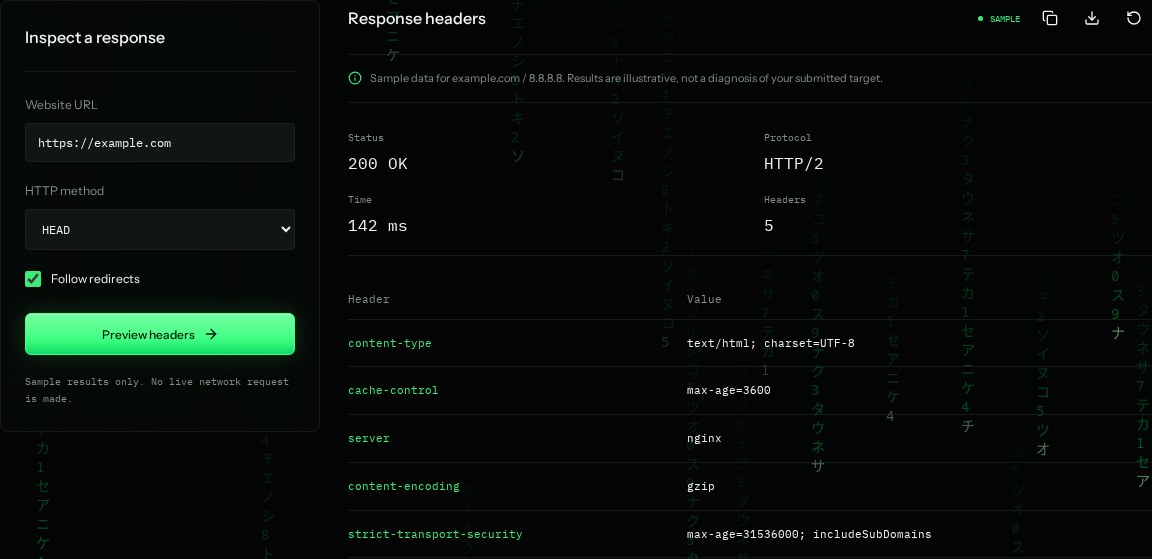
How to read the information
- Content-Type
- text/html; charset=UTF-8 says the response is an HTML document using UTF-8 text.
- Cache-Control
- max-age=3600 allows caching for up to one hour, subject to other cache rules.
- Content-Encoding
- gzip means the response body was compressed. It does not describe its file format.
- Server
- nginx is the sample server label. This field can be hidden or changed, so it is not proof of server software.
What the example means
The example is a successful, compressed HTML response with caching instructions. Check cache rules before expecting an edit to appear immediately.
On your Mac or Windows PC
Mac instructions
Open Terminal. For a GET request that prints headers but discards the body, use curl -s -D - -o /dev/null https://example.com.
curl -I https://example.comA check from your computer reflects your own connection. It may differ from a remote test or the mockup shown here.
Keep this in mind
HEAD and GET responses can differ. To inspect what your browser actually received, open its developer tools, choose Network, reload, and select the document's Headers tab.