A simple guide to dns propagation.
Compare DNS answers and decide whether a recent change is still spreading.
Open DNS propagationWhat this tool tells you
After a DNS change, different resolvers may keep old cached answers for a while. Comparing them helps explain why different users see different destinations.
Try it in SiteTrace
- Enter the domain and the record type you changed.
- Choose Preview propagation to see six illustrative resolver locations.
- Look at the answer in each row, not just the agreement count.
The current tool shows fixed mockup data—not a live check of the address you enter. The screenshot below is an example, not a diagnosis.
What your result looks like
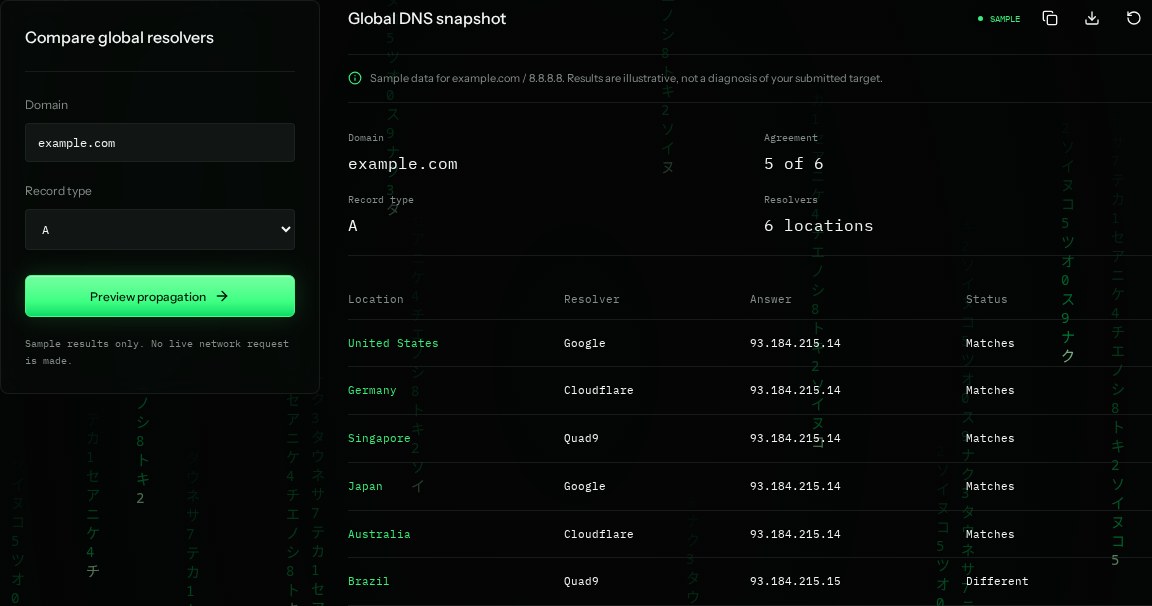
How to read the information
- Agreement: 5 of 6
- Five sample rows return the same address. This is agreement between sampled answers, not proof of worldwide completion.
- Resolver
- The DNS service that supplied the answer. Location is a sample test location.
- Matches
- The row agrees with the sample's common answer. It does not prove the address is the intended one.
- Different
- The Brazil row ends in .15 instead of .14. It could represent cached or intentionally different routing.
What the example means
The example has one differing answer. Verify the authoritative record and TTL before changing DNS again.
On your Mac or Windows PC
Mac instructions
Run both lines in Terminal and compare the answers. These query two public DNS services from your Mac.
dig @8.8.8.8 example.com A
dig @1.1.1.1 example.com A
A check from your computer reflects your own connection. It may differ from a remote test or the mockup shown here.
Keep this in mind
Public resolvers use anycast and caches. Different answers can be intentional, including load balancing and geographic routing; agreement is not always expected.