A simple guide to traceroute.
Read network hops, delays, and asterisks without blaming the wrong router.
What this tool tells you
Traceroute asks successive routers along a path to reply. It helps locate where replies stop or delay increases, but the return path and router policies affect the result.
Try it in SiteTrace
- Enter a domain or IP and choose a hop limit and region.
- Choose Preview route to see the fixed five-hop example.
- Follow the rows in order and compare later hops before interpreting one slow row.
There is no in-browser tool for this diagnostic — your computer or network has to perform it. The Mac and Windows commands below show how to run it yourself.
What your result looks like
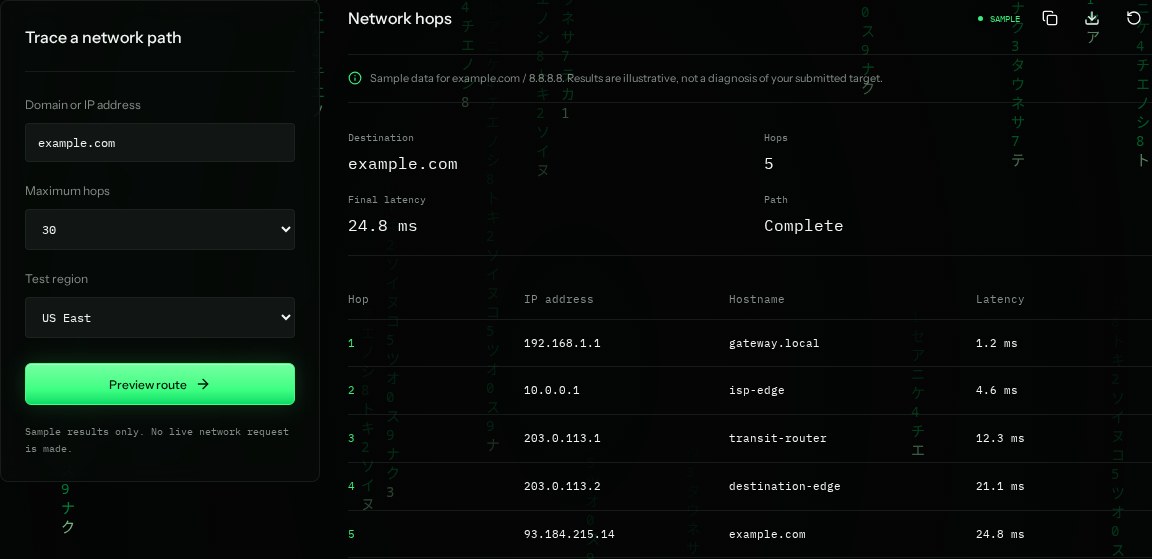
How to read the information
- Hop
- A step along the observed network path. Hop 1 is often your local gateway in a test from your computer.
- IP / hostname
- A replying router's address and optional name. Private addresses near the start can be normal.
- Latency
- Round-trip time for that hop's reply. It is not the time spent only inside that router.
- Path: Complete
- The sample reaches the destination in five hops. Its addresses are illustrative, not a real traced path.
What the example means
The example reaches the destination at 24.8 ms. In a real trace, one slow intermediate hop is not evidence of congestion if later hops reply quickly.
On your Mac or Windows PC
Mac instructions
Open Terminal. This limits the trace to 30 hops. The default Mac trace commonly sends UDP probes.
traceroute -m 30 example.comA check from your computer reflects your own connection. It may differ from a remote test or the mockup shown here.
Keep this in mind
An asterisk means no reply arrived for that probe; routers may filter or deprioritize replies. A trace that stops does not prove that ordinary website traffic also stops.