A simple guide to port check.
Tell an open TCP port from a refused or unanswered connection.
What this tool tells you
A port identifies a service on a host. Checking a specific port helps diagnose whether your computer can make a connection to that service.
Try it in SiteTrace
- Use a host you own or are authorized to test.
- Enter its port, such as 443 for HTTPS, and choose a protocol.
- Choose Preview port check. The fixed sample shows a successful TCP connection.
There is no in-browser tool for this diagnostic — your computer or network has to perform it. The Mac and Windows commands below show how to run it yourself.
What your result looks like
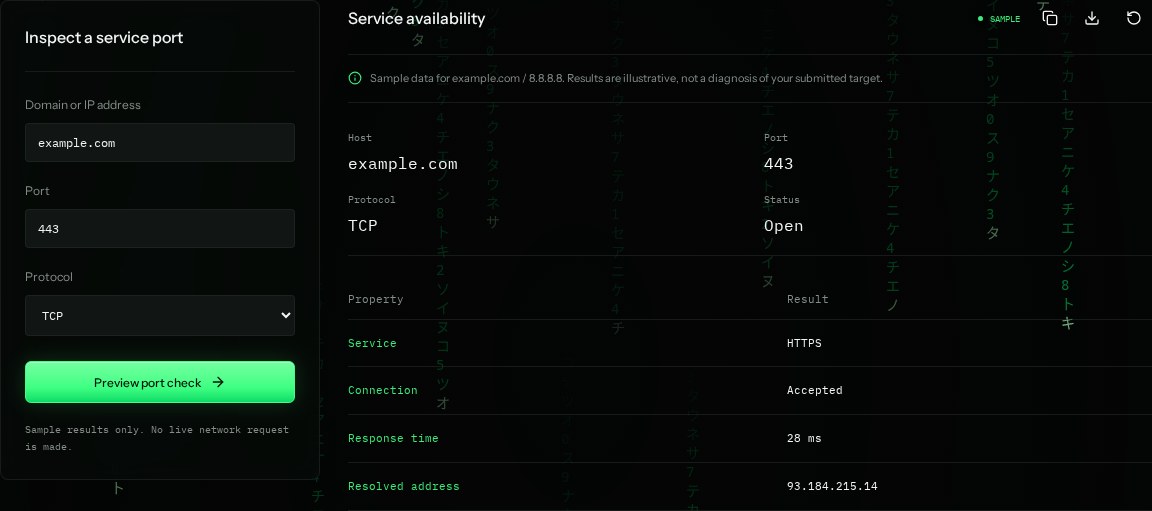
How to read the information
- Port: 443
- The conventional HTTPS port. A different application can still use this number.
- TCP
- A connection-based protocol. A successful TCP handshake is easier to establish than UDP availability.
- Open / accepted
- The sample accepts a connection. This does not prove the service will respond correctly to application requests.
- Response time
- The sample connection delay, not a complete application or page-load measurement.
What the example means
The example accepts TCP on 443. If the browser still fails, check TLS and HTTP next.
On your Mac or Windows PC
Mac instructions
Run in Terminal to test a TCP connection. This does not audit TLS or scan every port.
nc -zv example.com 443A check from your computer reflects your own connection. It may differ from a remote test or the mockup shown here.
Keep this in mind
Only test systems you are authorized to check. A refusal usually means the connection was actively rejected; no reply can mean filtering or packet loss. These commands test TCP, not UDP.