A simple guide to ping test.
Read latency and packet loss, and understand what a timeout does not prove.
What this tool tells you
Ping sends small test packets and waits for replies. It helps compare connection delay and spot dropped replies from your own connection.
Try it in SiteTrace
- Enter a domain or IP, then choose packet count and region.
- Choose Preview ping to see four sample replies.
- Read packet loss first, then compare average, minimum, and maximum delay.
There is no in-browser tool for this diagnostic — your computer or network has to perform it. The Mac and Windows commands below show how to run it yourself.
What your result looks like
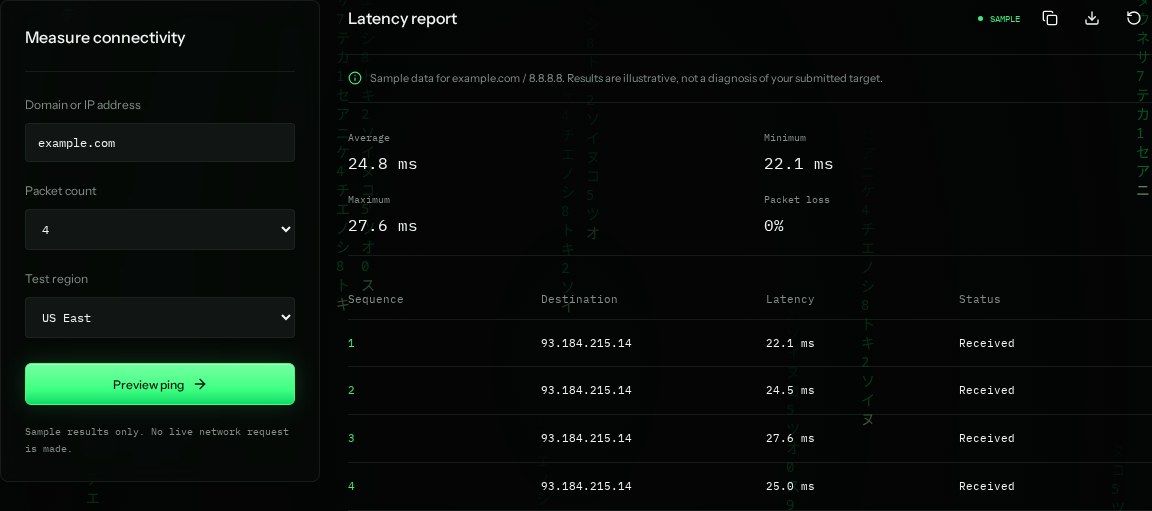
How to read the information
- Average: 24.8 ms
- The mean round-trip delay: about 25 thousandths of a second to send a packet and get a reply.
- Minimum / maximum
- 22.1–27.6 ms is the sample range. A large spread can indicate variable delay.
- Packet loss: 0%
- All sample packets received a reply. Four packets are only a small snapshot.
- Sequence
- Each row is one packet. Received means that reply arrived within the test's timeout.
What the example means
This short example shows consistent replies with no loss. Repeat a real test before blaming the connection for an occasional spike.
On your Mac or Windows PC
Mac instructions
Open Terminal and run this command. -c 4 stops after four packets.
ping -c 4 example.comA check from your computer reflects your own connection. It may differ from a remote test or the mockup shown here.
Keep this in mind
Some hosts block ping but still serve websites normally. A timeout alone does not mean the site is down. Your own test does not use the preview's selected region.